(a.k.a. the little tricks that save your sanity)
Running a service means keeping a lot of plates spinning. Kinderloop is full of hidden gems that save precious time, keep you compliant without drowning in paperwork, and help your whole team get more out of every day. The best part? Most of these hacks are already at your fingertips, just waiting to be discovered.
If you’re setting up for a new year, start with Getting organised for the year ahead with Kinderloop. This guide is for everything after that. So grab a coffee, take five, and let’s dive into the hacks you’ll wish you knew sooner.
Jump to: Find anything, fast | Save time every week | Planning that connects | Compliance and evidence made easy | Family and child voice | Working across more than one service | Your hacks checklist
1. Find anything, fast
Search like Sherlock
Click the search icon (the magnifying glass) at the top of your main feed and you’ll find a few handy options:
- Advanced Search: combine multiple rules, such as a child, a learning tag, an educator and a date range, to laser-focus your results.
- Portfolio Search: pull up a child’s entire learning journey in one place.
- My Posts: see everything you’ve posted.
- Drafts (not shared posts): instantly see all your yellow draft posts, so nothing gets left unfinished.
- Family Messages: jump straight to posts and messages from families.
Pro tip: Search is only as good as your tags. Consistent learning tags make every search faster and more accurate.
Let your resource tiles do the tagging
If your team uses the same resource tiles again and again, let them tag posts for you. Whenever an educator uses an auto-tagged tile in a post, the post is automatically tagged with the tile’s wording, so it’s much easier to find later.
Turn on auto tagging in Settings > Options, and every new resource tile you create will be auto tagged from then on. Tiles you made before switching it on need to be done by hand: go to Settings > Image packs and click Auto tag on each tile you use regularly.
Historic views = time travel
Need to revisit sleep charts or daily activities? Go to Settings > Activity and click the blue calendar icon next to the activity chart you want, then jump back to any date or range. For accidents or medication, head into their feature areas and use the search tools to find past records.
Use the child profile as your one-stop shop
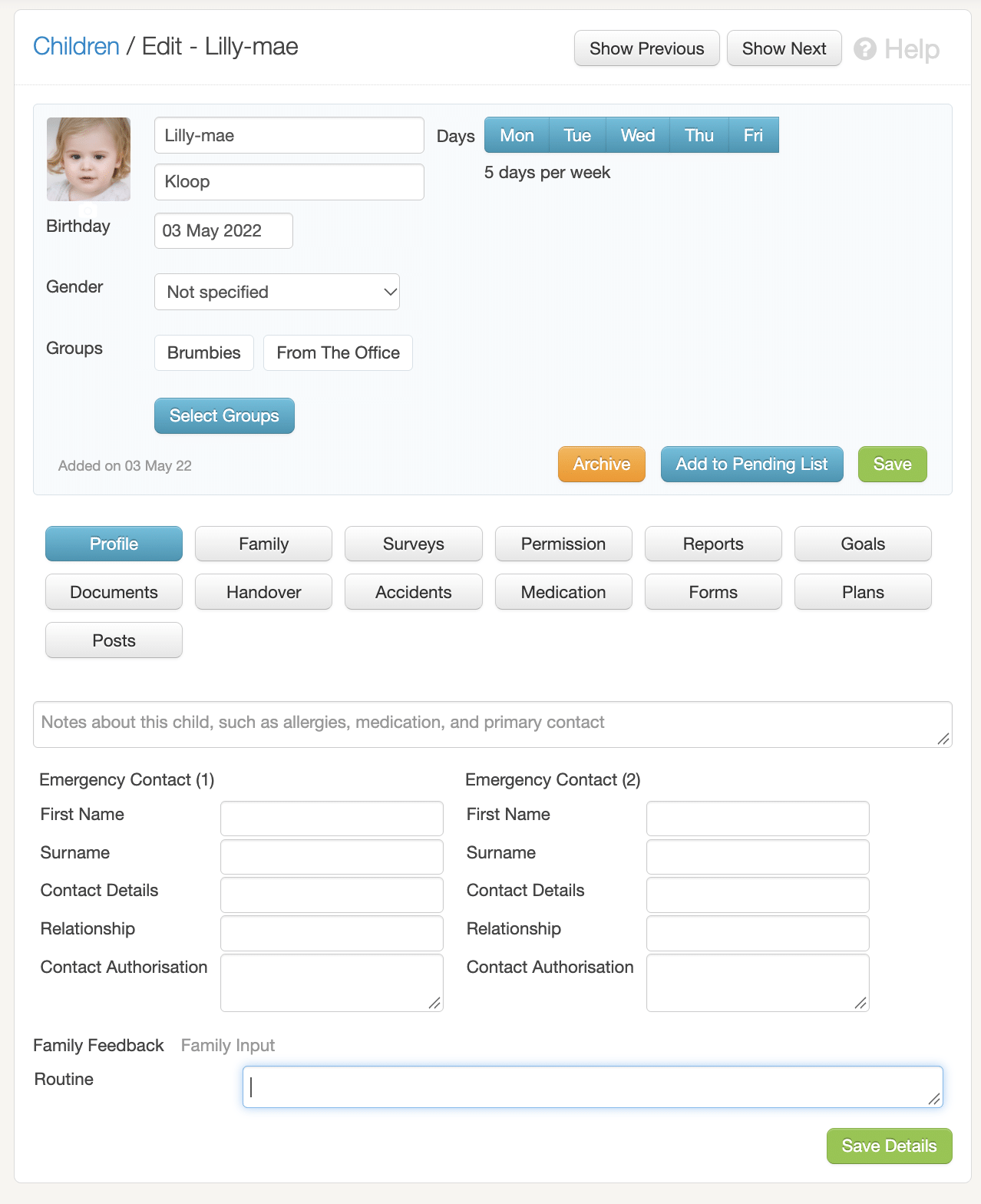
Need to find something for one child, fast? Go to Settings > Children, open the child’s profile, then click the relevant tab. Everything related to that child is kept in one place, including their:
- Accident and incident reports
- Medication records
- Surveys and permission forms
- Reports and custom plans
- Documents and handover forms
- Recent posts
So when a family asks about last week’s bump, or you need a signed permission form before an excursion, it’s one click away. No more searching through different areas of Kinderloop.
2. Save time every week
Copy Details for siblings
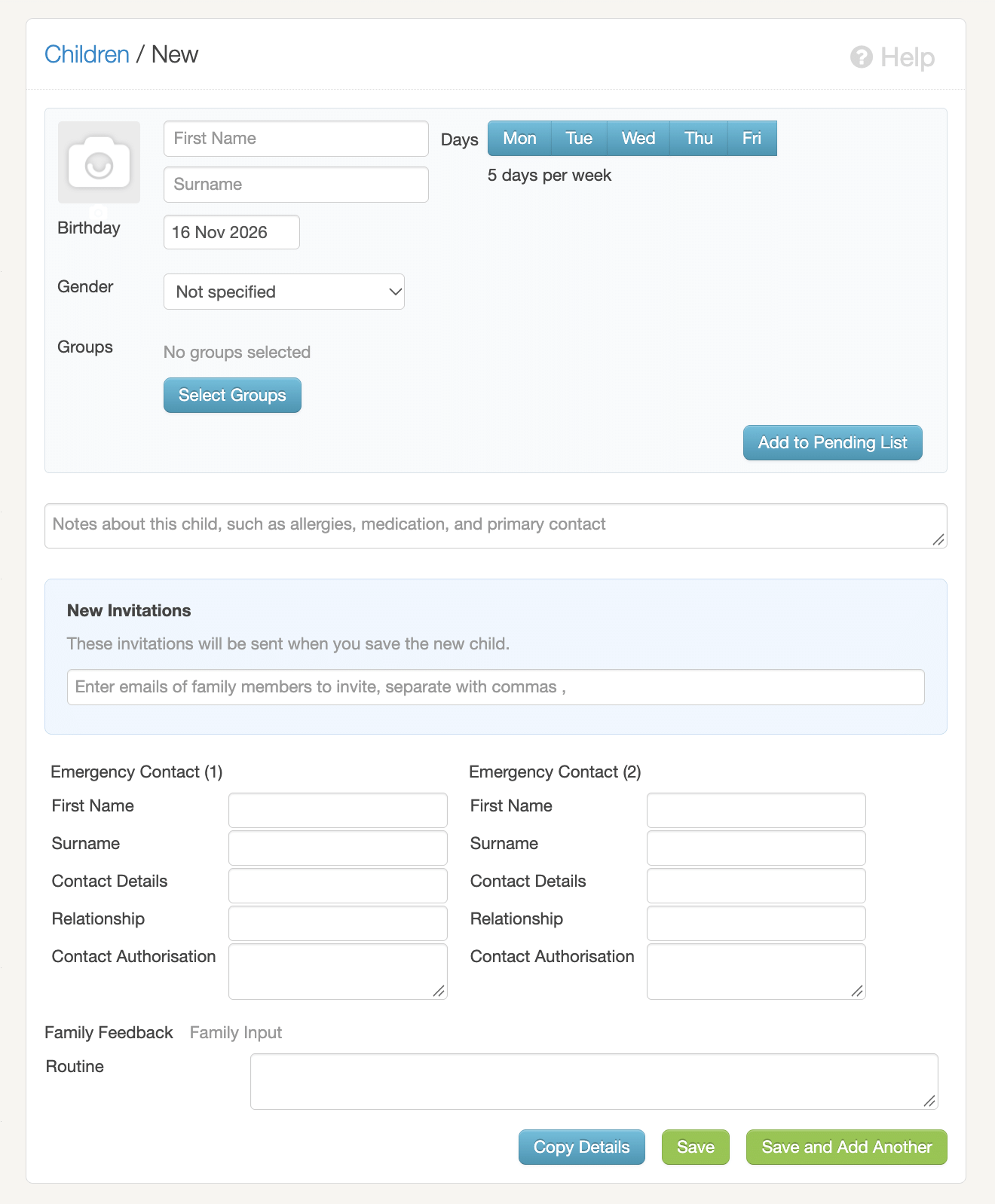
Enrolling a sibling? When you add the new child, scroll to the bottom of the page and click Copy Details. It copies the emergency contacts and family details across from their brother or sister, so you don’t have to enter them all over again.
Use groups to filter your feed
Groups aren’t just for rooms. In Settings > Groups, create groups that help you organise your posts, such as:
- Educational Leader
- From the office
- Leadership team
- Staff
- Kitchen or support staff
Every group can be filtered in your feed, so you can see all of the Educational Leader’s posts, or every update from the office, at once.
If you tick Share with families on a group, families can filter their feed the same way. It makes it really quick for them to find important posts they might have missed.
Pro tip: In Settings > Options, turn on Auto staff group and Auto child group. Kinderloop creates two groups, ‘All staff’ and ‘All children’, and adds every new child and staff member to them automatically, so you never have to update them by hand.
Let To Action do the chasing
From your Settings landing page, click To Action for a snapshot of everything that needs attention. As well as unsigned incident reports, you’ll find:
- Family members with pending invitations, and parents who haven’t logged in yet
- Bulk reminders for families who haven’t activated their accounts
- Pending permissions and forms
- Immunisation records that are out of date
- Unread or incomplete surveys
Pro tip: Check To Action weekly during onboarding periods. Nothing slips through the cracks, and you avoid a big clean-up later in the year.
The Magic button
Kinderloop Magic is like a handy sidekick for your educators. Instead of replacing their words, it helps them do more with them:
- Expand a short note into a fuller reflection when you need more context.
- Quickly translate posts so families can read updates in their home language.
- Suggest learning tags you might have missed.
- Summarise a child’s goals. In the Goals area, Magic can review all of a child’s goals across the year and write a summary for you.
Educators are still the authors. Magic just adds polish, accessibility and depth.
Kinderloop Magic is an optional add-on at $10 + GST per month for 200 credits. Each push of the Magic button in a post uses 1 credit, and a goals summary uses 2.
Try it free first. Turn Magic on in both Settings > Options and Settings > Accounts. Then go to Settings > Magic and choose which Magic options you’d like your educators to have. Download our Kinderloop Magic help sheet below for more.
3. Planning that connects
Kinderloop gives you a few different ways to plan, and they all link back to children’s learning. Here’s how to get the most out of each one.
Want to go deeper? Our two-part series walks you through it step by step: Part 1: The Planning Cycle and Part 2: Ways to program.
Weekly planning without the panic
The planning calendar shows your week or month at a glance. Add a plan to any date, then attach photos, resources and learning tags, so everything for that experience is in one place.
When you add a plan, you can also tick Auto create post. At 8 am on the date you’ve chosen, Kinderloop automatically turns the plan into a post on your feed and shares it with the audience you selected. Families can always see what’s planned by checking their calendar, so this works best as a handy reminder for educators of what’s on that day.
It’s also perfect for events. Add your event to the calendar ahead of time, tick Auto create post, and a reminder goes out on the day without anyone having to remember.
Pro tip: Plan next week on a Friday with Auto create post ticked. When you arrive on Monday morning, the posts are already on the feed.
Custom plans: your service, your style
Custom plans let you build planning templates that match the way your service works. Start from one of Kinderloop’s ready-made templates, or create your own with the headings and sections your team actually uses. Use them for weekly programs, critical reflections, meeting minutes and more, and share them with families when you’re ready. Read more in Meet Kinderloop’s new Custom Planning Feature.
Pro tip: Add a family comment box to your plans so families can respond directly. Their comments sit with the plan, giving you genuine two-way dialogue and ready-made evidence for Quality Area 6.
Idea walls: not just a noticeboard
Idea walls are a freeform space for brainstorming and big-picture planning. Jot down ideas as they come up, add posts from your feed or from other walls, map out longer projects, and share the wall with the educators or families who need to see it.
Hack: Start a ‘Family Ideas Wall’ and share it with families. Invite them to share recipes, songs and cultural stories as posts, then add them to the wall. Families feel heard, and you get authentic input for your curriculum.
Link it all together
Smart linking connects each step of the planning cycle: observe, assess, plan, implement and evaluate. When you write a follow-up, extension or reflection, link it to the original post. The whole journey then sits together in the child’s profile, so you, families and assessors can see how one moment of learning grew over time.
For thoughts you’d rather keep within the team, use the educator link option. It lets educators add private notes or critical reflections to a post that families can’t see.
4. Compliance and evidence made easy
QIP without the headache
Fill in your QIP directly in Kinderloop, add posts as evidence, tag posts with NQS or QIP tags to save time, and save snapshots whenever you like. Switch it on in Settings > Options first, then find it in Settings > QIP. In Options you can also choose to share your QIP with families, so they can read it in their app.
Pro tip: When your assessor asks you to upload your QIP to the NQA ITS portal, just click Preview > Print > Save to PDF, then upload the PDF. Done in minutes.
Reports that do the heavy lifting
Generate summative assessments or transition statements from templates, or build your own. Set reports to auto-add posts from your selected learning tags and voilà, an easy, automated way to build reports for each child.
To set it up, go to Settings > Reports > Templates and create a new template, or update one you already have. Add the Find by auto post option, then click the cog in that section and select the learning outcomes you want the report to search for.
You can also use reports to track learning outcomes for each child, or posts for each educator. When you tag posts to learning outcomes, you’re not just categorising. You’re:
- Showing how children’s daily experiences link to the learning outcomes
- Tracking growth across outcomes over time
- Creating visible evidence that each child’s learning is supported in holistic ways
Pro tip: Run a tag report. It shows which outcomes you’ve covered most and where a child might need more opportunities, so your planning stays balanced and intentional. It’s strong evidence for Quality Area 1: Educational program and practice.
See which families are engaging
Kinderloop’s family engagement report shows you which families are engaging with their child’s posts. Go to Reports > Family engagement and choose your group. You’ll see which families have liked and commented on their child’s posts, all in one place.
It’s a quick way to spot families who might need a friendly nudge, a reminder to download the app, or a different way to connect. It’s also useful evidence for Quality Area 6: Collaborative partnerships with families and communities.
Turn incident data into safer environments
Your accident and incident area does more than keep records. Go to Settings > Accidents and export a CSV report to spot patterns like:
- Where accidents are happening
- What time of day incidents are most common
- Which rooms or environments are involved
- The most frequent types of injury
- Repeat incidents or trends over time
If you’re using Kinderloop’s standard accident report, CSV results are already turned on for you. If you’ve built your own template, you’ll need to switch them on first. Go to Settings > Accidents > Build templates, open your accident report, click the cog on each section and tick CSV results.
Pro tip: Export a summary each term and reflect on it as a team. It’s practical evidence for Quality Area 2: Children’s health and safety, and it helps prevent the next incident.
Digital sign-in = goodbye clipboards
Families can sign children in with a QR code on their phone, or use a foyer kiosk. Staff and visitors can sign in too. You can also set up ratios in group sign-ins and organise your groups by room. Switch it on in Settings > Options, then manage it from Settings > Sign in. For step-by-step setup, download our digital sign-in help sheet below.
Make Documents your service hub
Settings > Documents isn’t just for policies. Add handbooks, staff resources and links to key frameworks like the NQS, EYLF or MTOP, so everything your team needs is easy to find, right inside Kinderloop.
5. Family and child voice
Surveys families actually answer
Surveys aren’t just for end-of-year feedback. Use them for theme votes, event responses, policy acknowledgements, QIP reflections or quick check-ins. You can make them anonymous for honest answers, and choose whether they go to a group or an individual child’s family.
Pro tip: Keep them short and friendly, and add an emoji or two. Short surveys tend to get far more replies.
Child posts = purple magic
Turn on Child Posts in Settings > Options and let children document their own experiences. Their posts show up in purple so they stand out in the feed, and families get to see learning through their child’s eyes. Use them for projects, ‘child council’ updates, or capturing children’s voices in their own words.
6. Working across more than one service
Admin coordinator accounts are a game-changer
If you oversee more than one service, stop logging in and out of different accounts. An admin coordinator account gives admin users one login across all of their services, so you can:
- Access multiple services and switch between them quickly
- Post to one or several services at the same time
- Copy templates between services
- Keep documentation and workflows consistent across sites
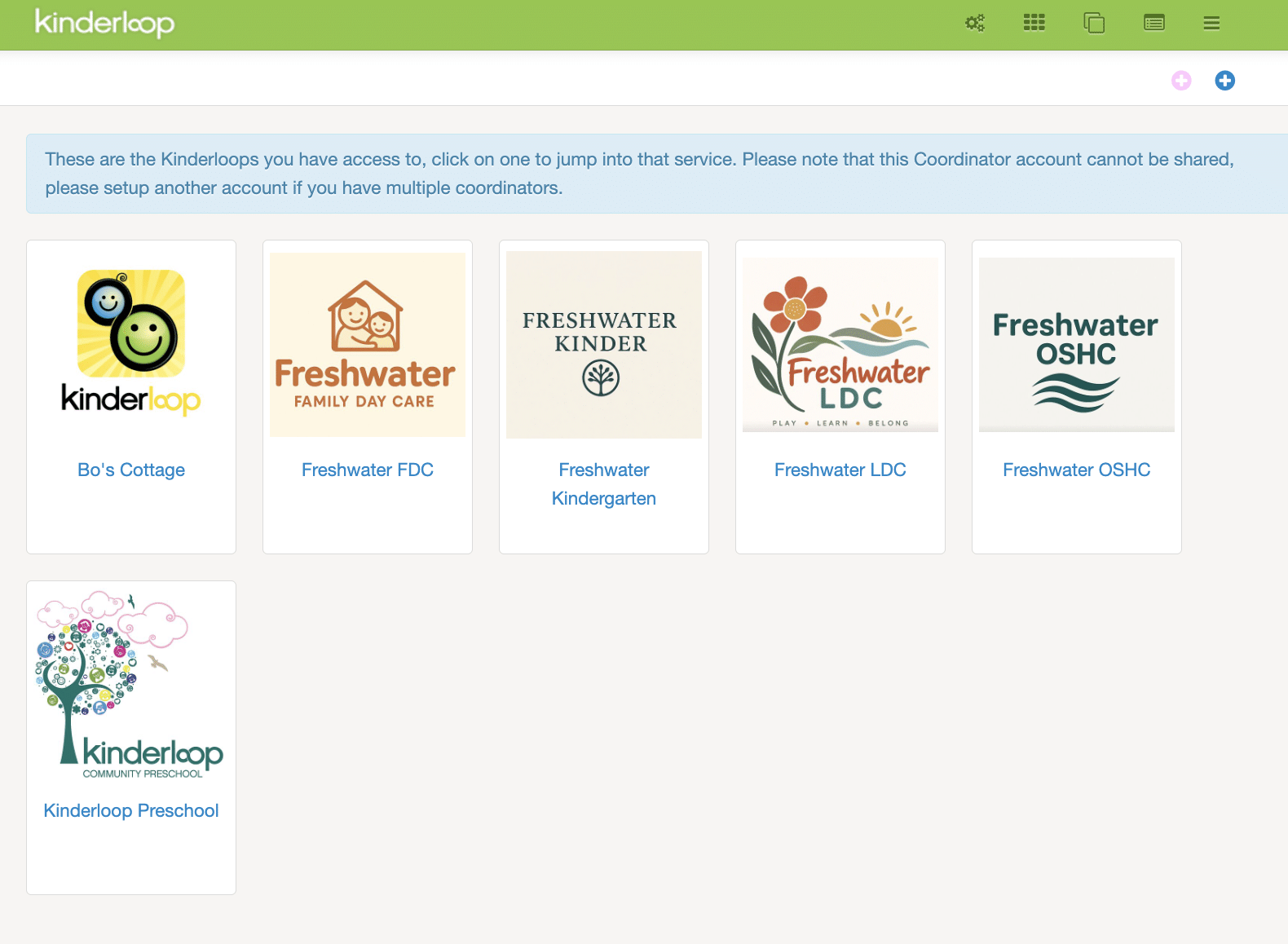
Admin coordinator accounts are designed for admin users and anyone overseeing more than one Kinderloop, such as Approved Providers, operations or area managers, and admin teams. If your leadership team isn’t using them yet, they’re well worth exploring.
Your hacks checklist
Which hacks is your service already using? Tick them off and see how you’re tracking.
Kinderloop Hacks Checklist
For Directors, Managers & Approved Providers
Ticks only last while this page is open. Print the page if you’d like a copy for the office.
Kinderloop isn’t just digital paperwork. It’s your planning partner, compliance buddy and creativity spark. Sometimes the smallest change makes the biggest difference.
So, which hack will you try first? Maybe it’s letting children post, running a tag report, or finally sending those bulk reminders. Whichever it is, you’re about to make Kinderloop work even harder for you.
If you’d like a hand with any of these, give one of our friendly team a shout! We are always more than happy to help.
Not using Kinderloop yet? Reach out to our team and we’ll show you these hacks in action.
Happy Kinderlooping!
Follow along on our social pages to ensure you don’t miss out on all of the Kinderloop tips & hints, and learn about our new features!
Facebook
Instagram